



Windows Setup
On This Page
Most SSH clients will work! Here are a few ways, all will require either an SSH key or MIT Kerberos authentication tools installed.
ℹ️ℹ️ For those using MobaXterm or SecureCRT, the MobaXterm and SecureCRT pages have additional helpful default settings to make life easier.
MIT Kerberos
If you’ll not be using the WSL client, please install the latest version of MIT Kerberos for Windows (kfw-VERSION-amd64.msi) from their distribution page. You will need to restart your computer before using MIT Kerberos.
WSL (Windows Subsystem for Linux)
Please install WSL2 to install Ubuntu as a Windows native environment. WSL has kinit pre-installed. Please see the Microsoft instructions here.
MobaXterm Install and Setup
- Go to The MobaXterm Website, and browse to the Download Tab, then choose the Free Home Edition (we support this), and finally download the MobaXterm Installer (installer edition), either to your Desktop or Downloads folder.
- Locate the file in your system, and double-click to install. All defaults are desirable.
- Start MobaXterm
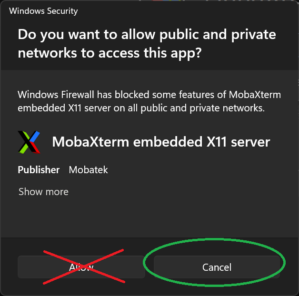
- When prompted with “Do you want to allow public and private networks to access this app?”, as below, please click the Cancel button:
- Pick a color mode, if you like
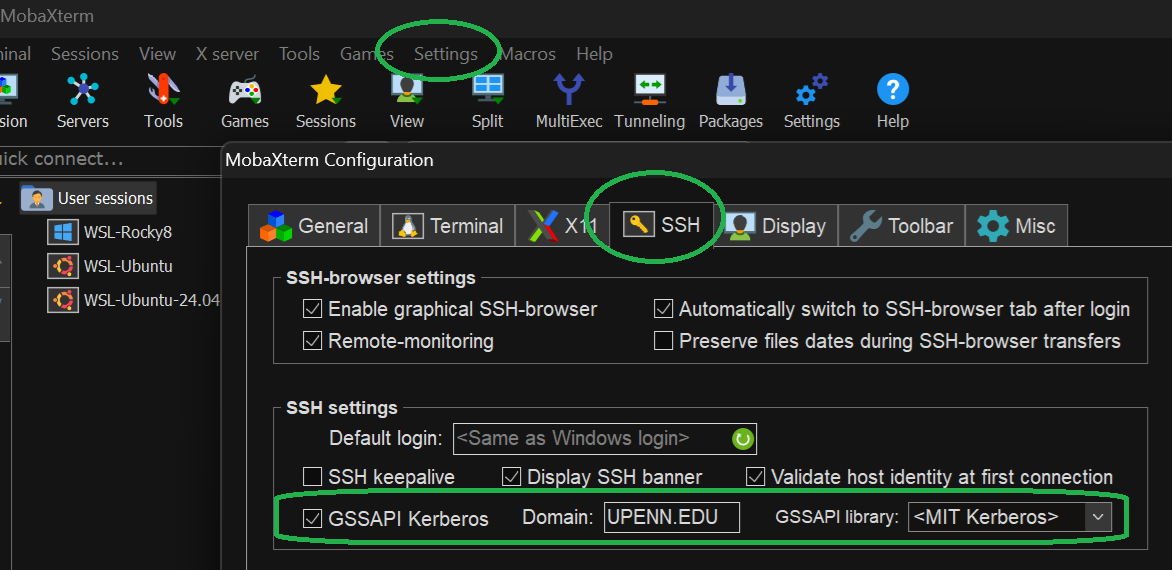
- Select Settings (menu) > Configuration > SSH (tab) > SSH agents (box)
- Check the GSSAPI Kerberos checkbox
- Set Domain:
UPENN.EDU - GSSAPI library:
<MIT Kerberos> - OK
- Create a Session:
- Click the Session icon
- Click SSH
- Remote host:
login.betty.parcc.upenn.edu - Check the Specify username checkbox, and add your PennKey username in the box
- (Optional) Click on the Bookmark settings tab and change the Session name to
PARCC Bettyor similar - OK
Connecting with SSH to PARCC Betty via MobaXterm
- Make sure that you are on campus and/or connected to the Penn VPN before continuing
- Start MobaXterm
- Make sure MIT Kerberos is running
- Click on the
PARCC Bettyorlogin.betty.parcc.upenn.edusession - MIT Kerberos should pop up, login with
pennkey@UPENN.EDU(capitalization matters) and your PennKey password - You should now be presented with a 2FA screen … we recommend 1, or Duo Push
SecureCRT
SecureCRT is the university recommended program for a SSH and SSH-FTP client for Windows. It can be downloaded from: http://www.upenn.edu/computing/product/specs/securecrt.html
One-Time Setup
- Helpful Global Options:
- Options > Global Options > General > Default Session > Edit Default Settings button
- Terminal > Emulation: Logical rows: at least 50, Scrollback buffer: at least 1000
- Options > Global Options > General > Default Session > Edit Default Settings button
- Create a Session:
- Click the Session Manager icon
- Click on the + in the Session Manager
- Protocol:
SSH2(Next) - Hostname:
login.betty.parcc.upenn.edu - Username: your PennKey username (Next)
- (Optional) Session name:
PARCC Bettyor similar (Finish)
Connecting with SSH to PARCC Betty via SecureCRT
You should now be presented with a 2FA screen … we recommend 1, or Duo Push
Make sure that you are on campus and/or connected to the Penn VPN before continuing
- Start SecureCRT
- Make sure MIT Kerberos is running
- Click on the
PARCC Bettyorlogin.betty.parcc.upenn.edusession - MIT Kerberos should pop up, login with
pennkey@UPENN.EDU(capitalization matters) and your PennKey password